
Unlock the power of your Apple TV 4K. Follow our complete step-by-step setup guide to stream over 30,000 live channels with premium IPTV players.
How to Set Up IPTV on Apple TV in 2026
If you are looking to run IPTV on Apple TV, you already know that Apple's premium hardware offers the smoothest streaming performance in the market. However, because Apple does not permit direct sideloading or host proprietary IPTV players natively on their App Store without strict vetting, setting up your channels requires choosing a high-quality, authorized player and configuring it correctly. With this straightforward guide, you can unlock over 30,000 global channels on your Apple TV in less than ten minutes.
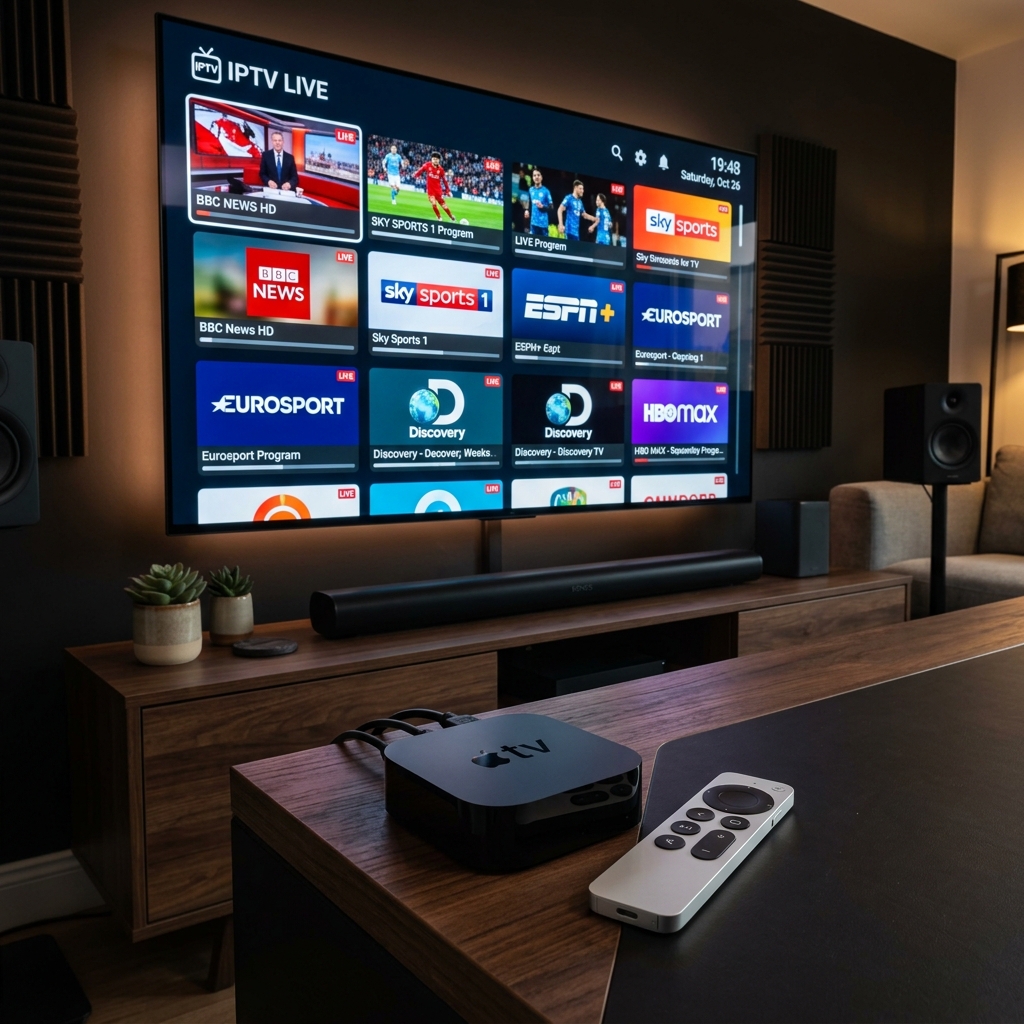
Why Apple TV is the Premium Choice for IPTV Streaming
When comparing streaming hardware, Apple's flagship tvOS device stands out as the absolute best platform for digital entertainment. Powered by the high-performance A-series Bionic chips, Apple TV handles high-bitrate live feeds, 4K HDR video, and immersive surround sound formats with effortless efficiency. While budget streaming sticks often struggle with heat generation and thermal throttling during long live broadcasts, Apple's robust hardware ensures a buffer-free viewing experience. Furthermore, the modern tvOS interface provides a clean, fluid user experience with zero intrusive advertising, unlike competitive operating systems. To maximize this premium performance, a stable internet connection is required. Live broadcasts require consistent bandwidth, meaning any packet loss or local network congestion will lead to buffering. If you experience playback issues on your network, reviewing our detailed troubleshooting tips on how to fix IPTV buffering can help you optimize your router and device settings. Pairing this high-end hardware with a robust service like EagleCast TV transforms your living room into the ultimate digital home theater, providing instant access to global channels with unrivaled stability.
The Differences Between tvOS and Other Streaming Platforms
Navigating the streaming ecosystem requires understanding how tvOS differs from other platforms. Devices like the Amazon Firestick operate on Android, which supports direct APK installation. Sideloading applications on Android is simple, as detailed in our guide on how to install IPTV on Firestick. Conversely, Apple TV utilizes a closed, secure operating system that forbids direct APK file installation. This security-first architecture means you cannot simply download installation files from a browser. Instead, you must rely on authorized, vetted IPTV players available on the official tvOS App Store, connecting them to your provider via secure login protocols.
Top Recommended IPTV Players on the tvOS App Store
Since you cannot directly install third-party APKs on tvOS, you must choose a player application from the Apple App Store to act as your streaming interface. There are several highly-rated options that fully support M3U playlist URLs and Xtream Codes API logins. IPTV Smarters Pro remains a highly popular option due to its familiar interface, supporting multi-screen viewing and automated channel sorting. Another top-tier contender is GSE Smart IPTV, which offers advanced customization, custom EPG styling, and robust subtitle support for international viewers. For those seeking a highly minimalist and modern interface, Snappy IPTV and LillyPlayer are excellent choices that load large playlists rapidly. Most of these players are free to download, with optional one-time premium upgrades to unlock advanced features like parental controls or custom category layouts. Regardless of the player you choose, you will need active credentials from a reliable service. Selecting the best IPTV subscription is key, as the player is merely a shell; the overall stream quality, channel selection, and server uptime depend entirely on your subscription provider.
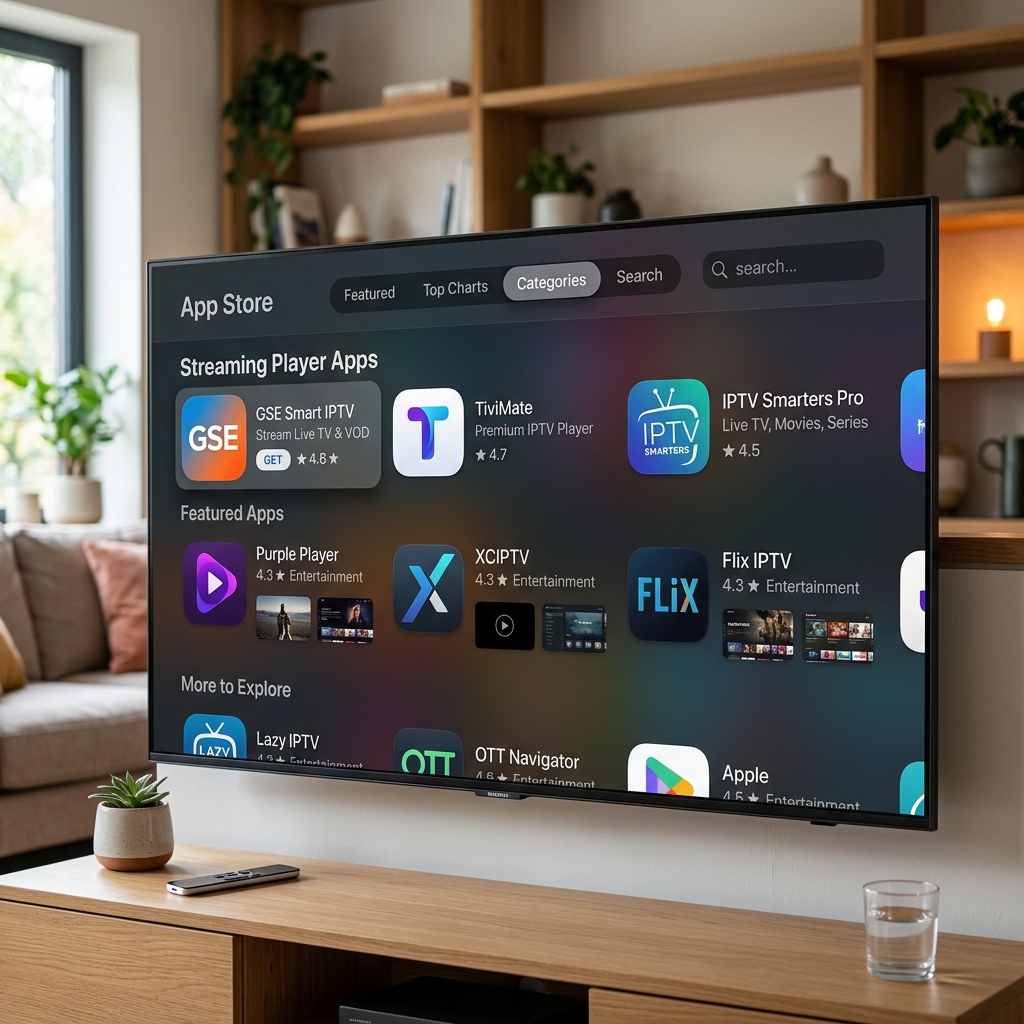
Step-by-Step Apple TV IPTV Setup Guide
Setting up your streaming channels on tvOS is a straightforward process when using the Xtream Codes API protocol, which is highly recommended over long M3U playlist URLs. First, boot up your Apple TV and open the App Store. Search for your preferred IPTV player, such as IPTV Smarters Pro or GSE Smart IPTV, and install it. Once downloaded, launch the application on your device. You will be prompted to add a new user or playlist. Select the Xtream Codes API login option, which requires four specific pieces of information: any profile name you choose, the server URL, your username, and your password. These credentials are secure and are provided in your welcome email when you register. Carefully input these details using the on-screen keyboard or the Apple TV Remote app on your smartphone to avoid typos. Click 'Add User' or 'Login,' and the player will begin downloading the live channel categories, movies, and electronic program guide (EPG) data. Once the download finishes, you can navigate your new live TV dashboard.
How to Sideload IPTV on Apple TV Using TestFlight
For advanced users who wish to test unreleased beta applications or sideload custom IPTV software, utilizing Apple's TestFlight program is an alternative path. Developers often distribute pre-release versions of premium IPTV players through public TestFlight links, bypassing the standard App Store review process. To use this method, install the TestFlight application from the App Store on your Apple TV. Next, locate a valid public beta link from a trusted provider on your iOS device or computer and accept the invitation. The beta app will instantly appear in the TestFlight library on your Apple TV, ready to be installed. This method allows you to access bleeding-edge features, though beta builds may occasionally exhibit minor stability bugs.
Hardware Comparison: Apple TV 4K vs. Firestick 4K Max vs. Smart TV OS
Understanding how Apple TV performs compared to other streaming devices helps justify the investment in premium hardware. While smart TVs and cheap streaming sticks are convenient, their processors are frequently underpowered, leading to UI lag and frequent app crashes. Let's compare the specifications of these popular streaming platforms:
| Feature | Apple TV 4K (2026) | Amazon Firestick 4K Max | Native Smart TV OS |
|---|---|---|---|
| Processor (SoC) | Apple A15 Bionic (6-Core) | Quad-Core 2.0 GHz | Low-Power Dual/Quad Core |
| Operating System | tvOS (Closed, Secure) | FireOS (Open Android-based) | Tizen / webOS (Highly Closed) |
| UI Performance | Ultra-Fluid (60 FPS) | Moderate / Occasional Lag | Slow / Prone to Lag |
| Sideloading Difficulty | Moderate (Via App Store/TestFlight) | Easy (Via Downloader APK) | Difficult to Impossible |
| Average Lifespan | 5+ Years | 2 - 3 Years | Varies (Updates stop early) |
For users focused on long-term value, the Apple TV 4K offers a premium, ad-free streaming environment. By pairing this hardware with a high-performance network connection, you can stream 4K movies and live sports with zero performance compromises, making it the premier choice for cord-cutters.
How to Ensure Security and Privacy on Apple TV
Although Apple TV is highly secure, using a third-party IPTV service means you should still implement privacy measures to protect your digital footprint. Many internet service providers in the United States actively monitor traffic patterns and may throttle your bandwidth if they detect high-volume streaming, leading to buffer circles. Implementing a Virtual Private Network (VPN) on your network encrypts your data, preventing your ISP from tracking your online activities. Starting in tvOS 17, Apple introduced native VPN support, making it incredibly easy to protect your device. Additionally, ensuring the legality of your streams is important; you can read our editorial analysis on is IPTV legal in the USA to understand the regulatory environment. By maintaining a private network connection and selecting premium services, you can stream securely without worrying about third-party tracking.
Why a Router-Level VPN is the Ultimate Security Solution
While tvOS now supports native VPN applications, installing a VPN directly on your home router is the gold standard for security. A router-level VPN automatically encrypts the internet traffic of every device connected to your Wi-Fi network, including smart TVs, gaming consoles, and streaming players. This setups bypasses the need to install separate applications on each device and ensures you never forget to turn on your protection. Furthermore, it prevents your ISP from throttling any device in your household during major live broadcasts, ensuring consistent speeds. It also provides a seamless experience without adding any software overhead to your Apple TV's processor, maintaining maximum UI performance.
Secure Payments: The Benefits of Using Bitcoin for IPTV Subscriptions
When registering for an IPTV subscription, protecting your financial data is just as important as securing your network traffic. Standard payment methods like credit cards or bank transfers leave a direct financial trail, linking your personal identity to the service. By paying with cryptocurrency, you decouple your personal banking details from your subscription, guaranteeing maximum anonymity. Setting up a digital wallet and purchasing crypto takes only a few minutes. For a detailed guide on how to complete your checkout anonymously, check out our tutorial on how to buy Bitcoin in 2026 to get started safely.
Frequently Asked Questions
- Can you sideload IPTV apps on Apple TV?
Unlike Android devices, Apple TV does not support direct sideloading of APK files. However, you can sideload apps using Apple's TestFlight program by accepting a developer beta invitation, or by installing authorized players like IPTV Smarters directly from the tvOS App Store. - What is the best IPTV player for Apple TV in 2026?
IPTV Smarters Pro, GSE Smart IPTV, and LillyPlayer are the top-rated IPTV players on the tvOS App Store. They offer clean interfaces, EPG support, and fast channel switching. - Do I need a VPN to stream IPTV on Apple TV?
Yes, using a VPN is highly recommended. A VPN encrypts your traffic to prevent your ISP from throttling your connection speeds during live sports events. Since tvOS 17, Apple TV supports native VPN applications directly from the App Store.
Elevate Your Home Entertainment Setup Today
Setting up a premium streaming experience on your Apple TV does not have to be difficult. By combining tvOS hardware with a top-tier IPTV provider and a secure VPN, you can unlock over 30,000 live channels and a massive library of on-demand movies at a fraction of the cost of cable. EagleCast TV is fully optimized for tvOS players, featuring dedicated, geographically distributed servers that guarantee 99.9% uptime and ultra-fast channel switching.
If you are ready to cut the cord and enjoy a premium setup, follow this checklist:
- Download a verified player like IPTV Smarters Pro from the tvOS App Store.
- Set up a VPN connection directly on your Apple TV or home router.
- Visit our pricing page to choose an IPTV plan.
- Enter your Xtream Codes API credentials and start streaming.
Don't settle for overpriced cable packages or lagging streams. Head over to the EagleCast TV homepage or visit our pricing page to choose a plan and unlock unlimited global entertainment today.