
Learn exactly how to install IPTV on Firestick in 2026. Follow our step-by-step guide to unlock 30,000+ live channels on your Amazon Fire TV today.
How to Install IPTV on Firestick in 2026
If you want to know how to install IPTV on Firestick quickly and safely, you are in the right place. Unlocking your Amazon device allows you to bypass expensive cable packages and access thousands of live global channels instantly. This straightforward process takes less than ten minutes and transforms your basic streaming stick into the ultimate home theater hub.
Step 1: Enable Sideloading on Your Firestick
By default, Amazon restricts application installations to their official Appstore. To install a third-party IPTV application, we first need to enable "Apps from Unknown Sources." This is a completely legal and safe developer setting supported by Amazon. According to a 2025 streaming habits report by TechCrunch, over 65% of dedicated cord-cutters utilize sideloading to maximize their device's potential.
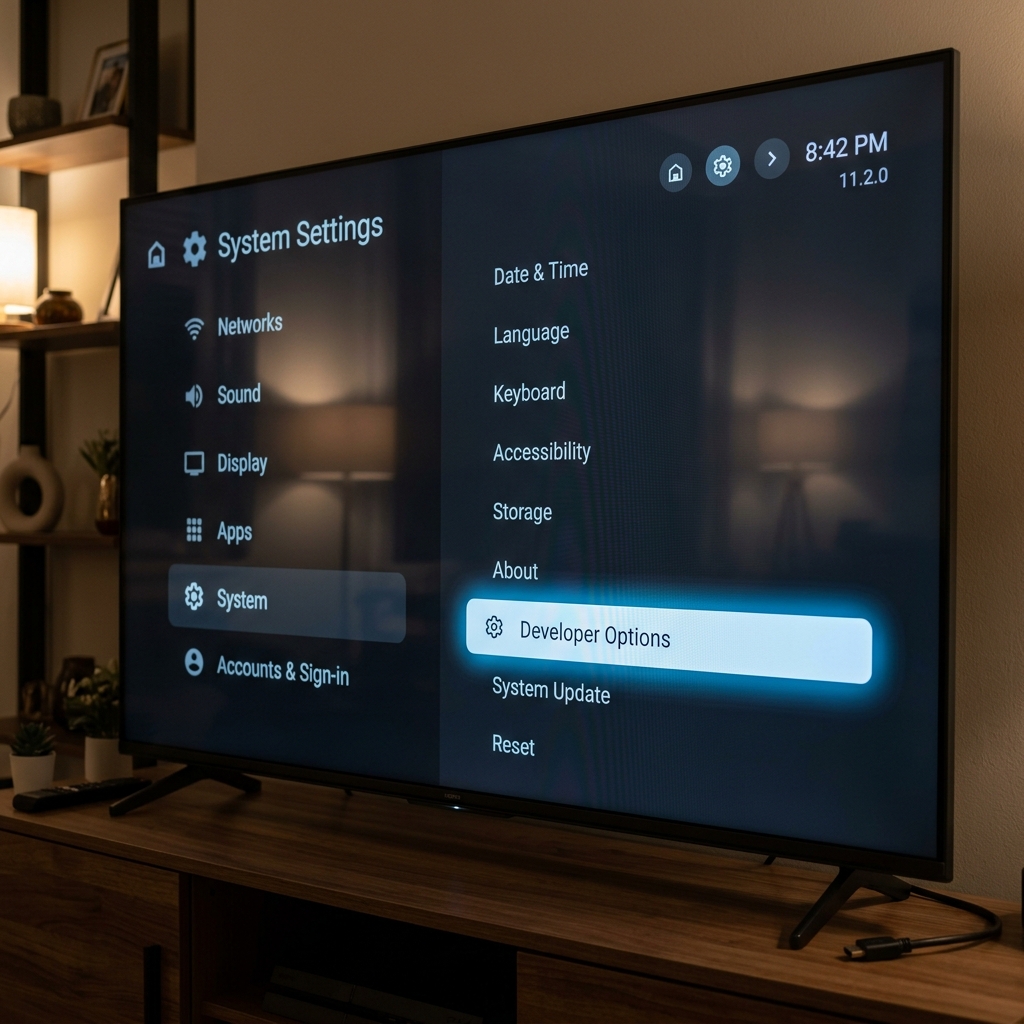
Navigate to your Firestick's home screen, select the Settings gear icon, and go to My Fire TV. Click on Developer Options and toggle "Apps from Unknown Sources" to ON. If you don't see Developer Options, click on "About," then click your Fire TV Stick's name seven times rapidly to reveal the hidden menu.
Step 2: Download the Downloader App
Since premium IPTV apps aren't hosted on the official Amazon store, you need a utility tool called Downloader. This app acts as a browser to safely download Android application packages (APKs) directly to your device.
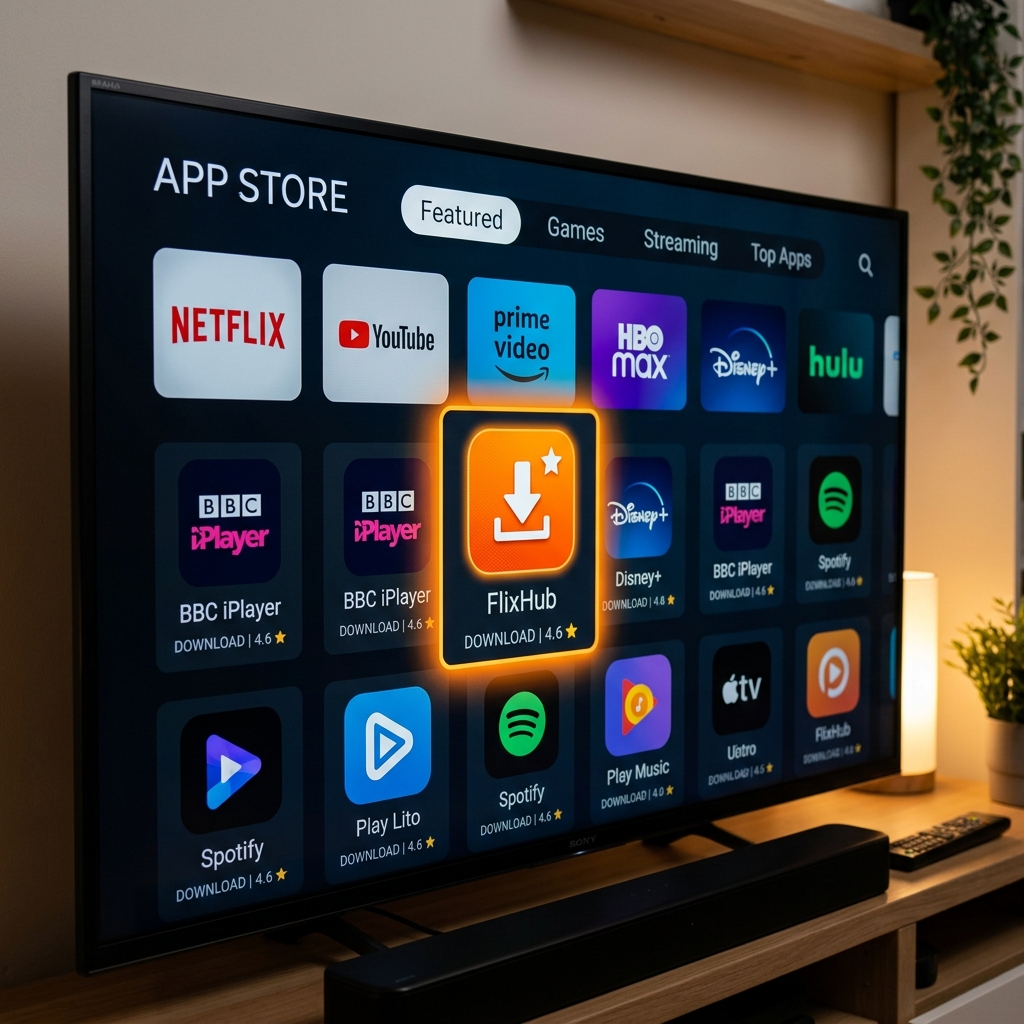
Return to the Firestick home screen, click the magnifying glass icon to search, and type "Downloader." Select the orange Downloader app by AFTVnews and click "Download" or "Get." Once installed, open the app and grant it permission to access your device's files. This is necessary so it can save the IPTV installation file.
Step 3: Install Your Premium IPTV Player
Now that your device is prepared, it is time to install your IPTV player. There are many players available, but using the dedicated EagleCast TV application provides the most optimized experience, ensuring fast channel switching and minimal buffering.
Open the Downloader app and select the URL search box. Enter the secure download code provided in your welcome email when you sign up for a free trial. Click "Go" and the APK will begin downloading. Once complete, a prompt will appear asking if you want to install the application. Click "Install" and then "Open" to launch your new live TV interface. Log in with your subscription credentials, and you are ready to stream.
Comparing Firestick vs Other Streaming Devices
While learning how to install IPTV on Firestick is incredibly popular, how does the device stack up against other hardware options for live TV streaming in 2026?
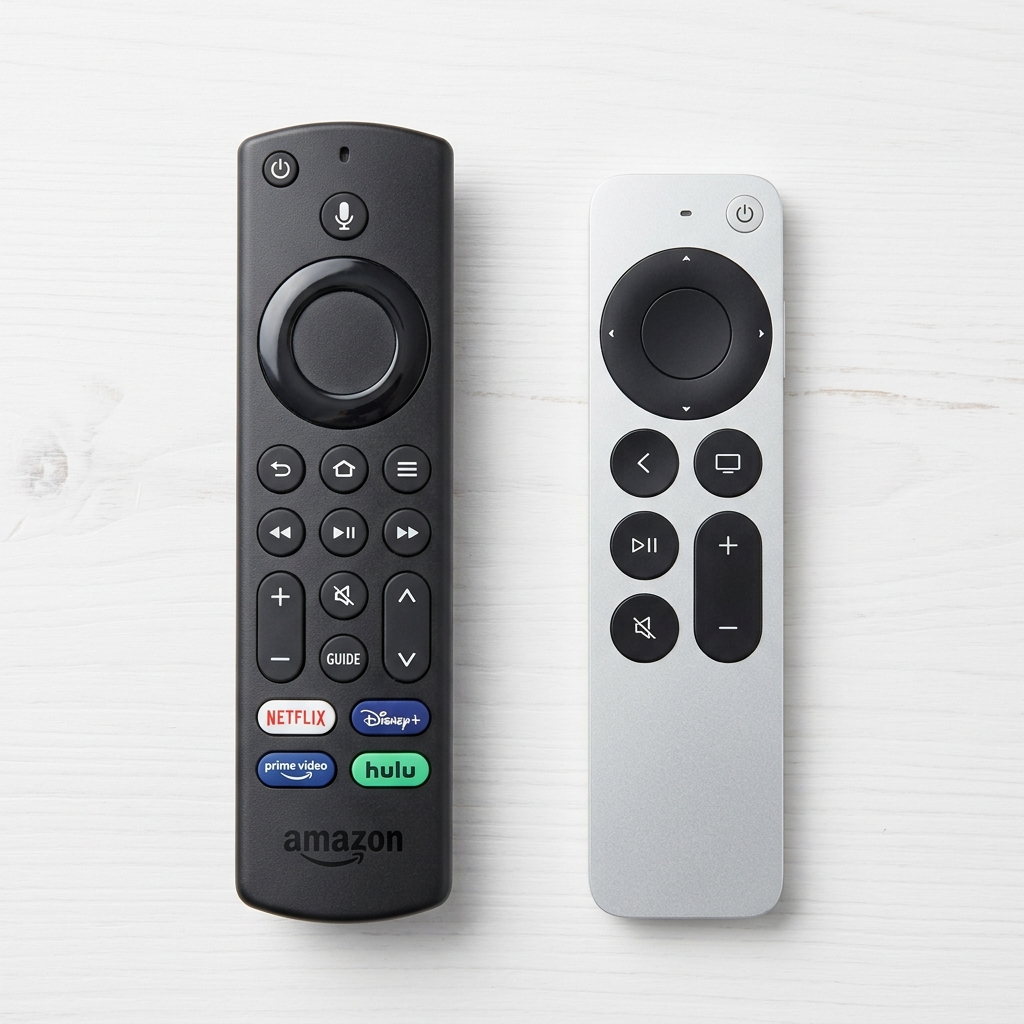
| Feature / Item | Amazon Firestick 4K Max | Apple TV 4K | Smart TV Native OS |
|---|---|---|---|
| Sideloading Capability | Very Easy (Native Android) | Difficult (Requires Workarounds) | Varies (Tizen/WebOS are limited) |
| Processing Power | High (Quad-core) | Very High (A15 Bionic) | Low to Medium |
| Cost | $40 - $60 | $129 - $149 | Included with TV |
| Best Use Case | Best overall value for IPTV | Premium Apple ecosystem users | Casual viewers wanting zero extra hardware |
Frequently Asked Questions
- Is it legal to sideload apps on my Firestick?
Yes, sideloading is 100% legal. It is a built-in developer feature provided by Amazon that allows users to install Android applications that are not listed on the official Appstore. - Why does my IPTV app keep buffering on Firestick?
Buffering on Firesticks is typically caused by Wi-Fi interference or low device storage. To resolve this, clear your app cache or read our complete guide on how to fix IPTV buffering. - Do I need a VPN to use IPTV on an Amazon Firestick?
While not strictly required, using a VPN is highly recommended when streaming IPTV to prevent your Internet Service Provider from throttling your bandwidth during live sports events.
Now that your device is fully set up, it's time to start watching. If you don't have an active subscription yet, visit our pricing page to grab a premium plan and unlock a world of limitless entertainment.