
Stop dealing with constant buffering. These 7 expert tips will drastically improve your IPTV streaming experience immediately.
How to Fix IPTV Buffering — 7 Proven Tips That Actually Work
Nothing ruins a crucial sports broadcast or a gripping movie finale quite like the dreaded spinning wheel. If you are desperately searching for how to fix IPTV buffering, you are not alone. Constant freezing is the number one complaint among digital cord-cutters. By following these 7 proven technical steps, you can eliminate stuttering for good and maximize the performance of your EagleCast TV subscription.
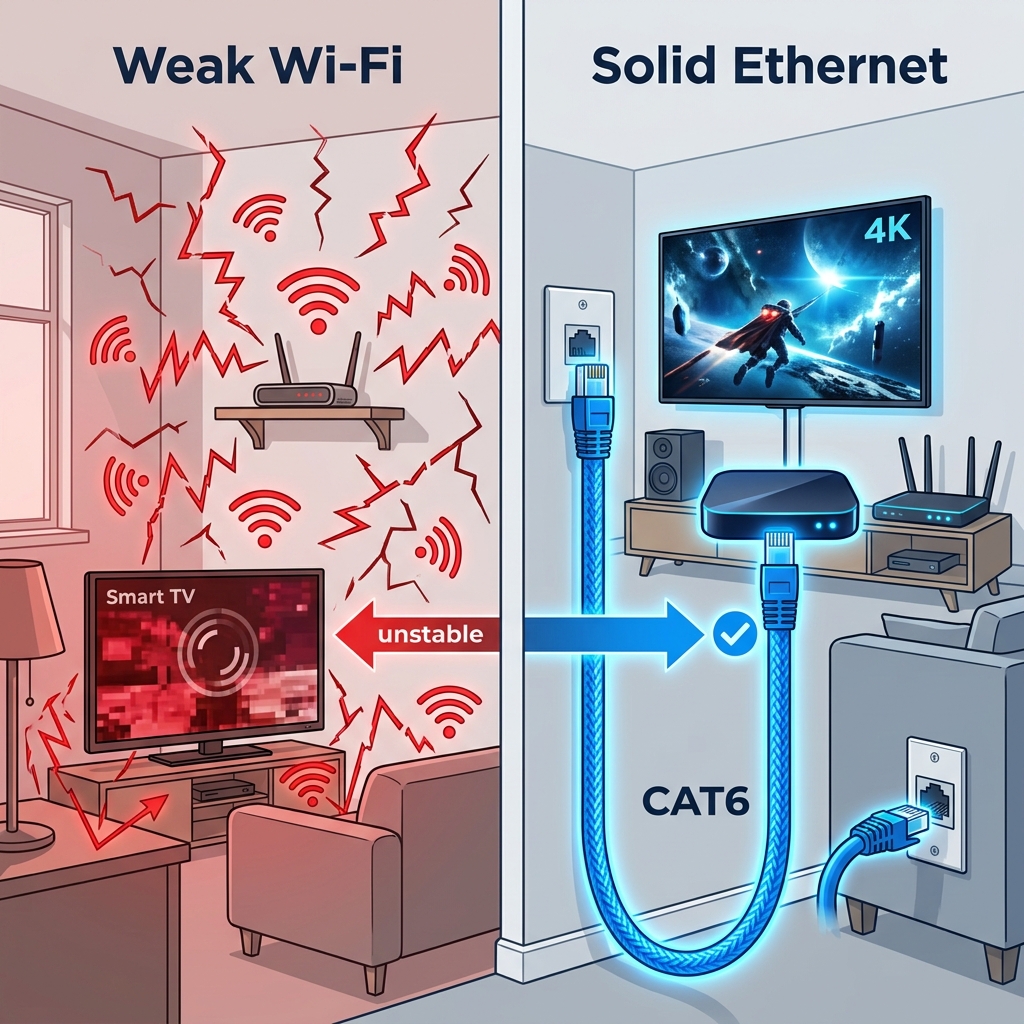
Tip 1: Ditch the Wi-Fi and Hardwire Your Setup
The single most effective fix for stream instability is moving away from wireless connections. Live video packets are incredibly sensitive to latency and packet loss. Even if your ISP provides a gigabit connection, Wi-Fi signals degrade rapidly when passing through walls or competing with other devices (like microwaves, baby monitors, and neighbors' routers).
A recent 2025 networking study published by BroadbandNow found that over 70% of live streaming latency issues are directly attributable to local Wi-Fi packet loss. The solution is simple: connect your streaming device directly to your router using a Cat6 Ethernet cable.
Tip 2: Understand Bandwidth vs. Ping
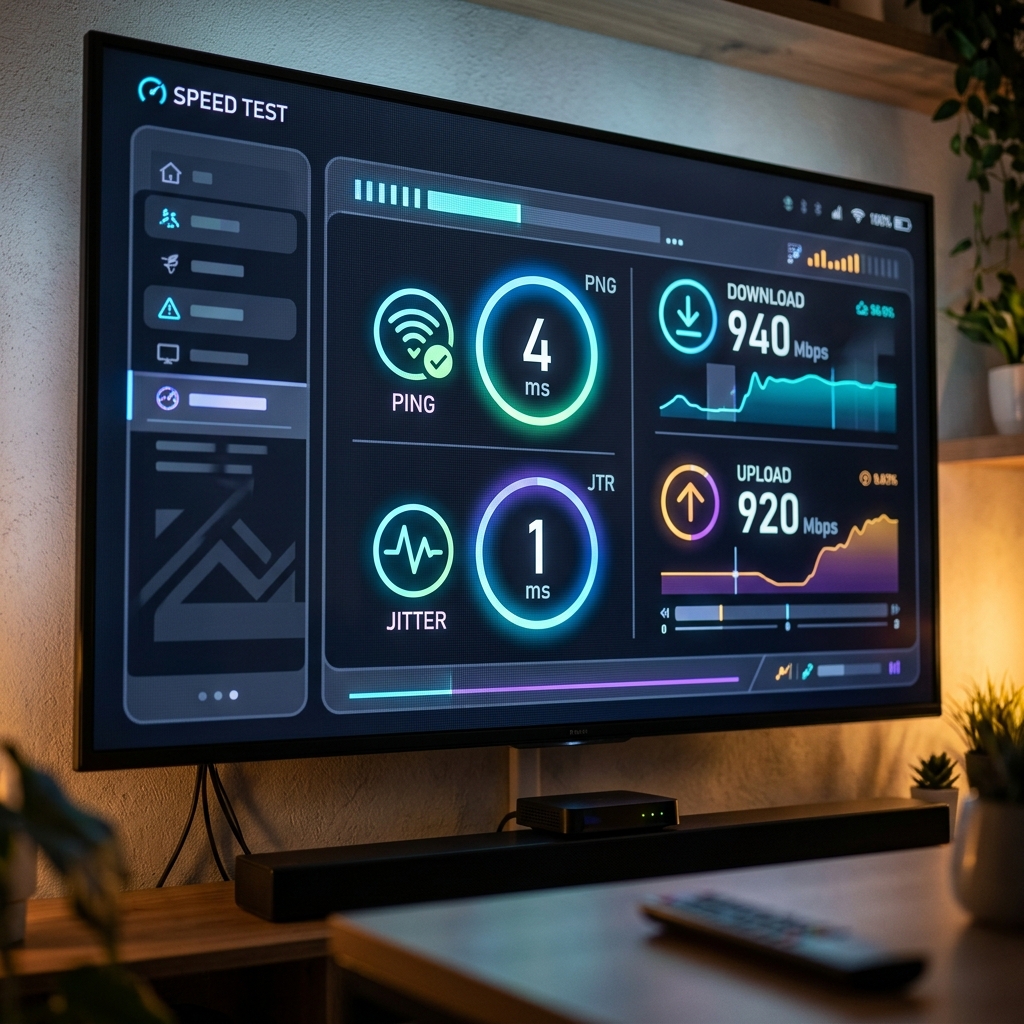
Many users mistakenly believe that upgrading to a 500Mbps internet package will magically solve their freezing issues. While bandwidth (how much data can flow at once) is important, ping (how fast that data travels back and forth) and jitter (the consistency of that speed) are far more critical for live streaming.
A high-definition 1080p stream only requires about 15-20Mbps of sustained bandwidth. However, if your ping is wildly fluctuating (high jitter), the video player's buffer will constantly run dry, causing a freeze. To test your true connection quality, open a speed test on your streaming device, not just your phone.
Tip 3: Clear the Cache on Your Device
Over time, streaming applications accumulate cached data that can severely slow down navigation and video processing on devices with limited RAM (like older Amazon Firesticks or budget Android boxes).
If you are experiencing sluggish menus followed by video freezing, force stop your application and clear its cache via your device's settings menu. Make this a weekly habit to keep your hardware running at peak efficiency.
Tip 4: Increase Your Player's Buffer Size
If your app allows you to adjust the "Buffer Size" (a common feature in premium apps like TiviMate or IPTV Smarters), try increasing it from "Normal" to "Large" or "Very Large." This forces the app to download a few extra seconds of video ahead of time, providing a cushion against minor internet hiccups.
Tip 5: Update Your Device Firmware
Outdated system firmware can cause severe compatibility issues with modern video codecs. Whether you are using a Smart TV, an Apple TV, or a Firestick, ensure your operating system is fully up to date to guarantee optimal video decoding performance.
Tip 6: Use a VPN to Bypass ISP Throttling
If your stream works perfectly all week but suddenly buffers constantly during a major Sunday football game, your Internet Service Provider (ISP) might be intentionally throttling your bandwidth. A Virtual Private Network (VPN) encrypts your data, masking your activity from your ISP and preventing artificial slowdowns.
Tip 7: Upgrade to a Load-Balanced Premium Provider
If you have hardwired your device, verified your ping, and optimized your app, but you still experience buffering during peak hours, the harsh reality is that your budget provider is at fault.
Budget providers cram tens of thousands of users onto cheap, single-location servers. When a major event starts, these servers inevitably bottleneck. Premium services like EagleCast TV utilize load-balanced Content Delivery Networks (CDNs). This means our infrastructure automatically distributes traffic across dozens of servers worldwide to ensure that nobody experiences a bottleneck.
| Buffering Cause | Primary Symptom | Immediate Solution |
|---|---|---|
| Wi-Fi Interference | Random, unpredictable freezing at all times of day. | Switch to a wired Ethernet connection. |
| Device Overload | App menus are sluggish; stream audio continues while video freezes. | Clear app cache; upgrade hardware. |
| Provider Bottleneck | Freezing ONLY occurs during major sporting events or weekend evenings. | Upgrade to EagleCast TV. |
Frequently Asked Questions
- Why does VOD work perfectly but Live TV buffers?
Video on Demand (Movies and Series) can buffer minutes of content in advance. Live TV cannot do this because the event is happening in real-time. This makes Live TV far more susceptible to minor network fluctuations and provider server overloads. - What internet speed do I actually need for IPTV?
For a stable 1080p high-definition stream, a consistent 20-30 Mbps connection is required. For raw 4K streaming, a consistent 50 Mbps connection is recommended. Stability (low ping/jitter) is more important than raw gigabit speeds. - Does changing the video player engine help?
Yes, switching from the default ExoPlayer to VLC Player (or vice versa) in your app's settings can often resolve hardware decoding issues that cause stuttering on specific devices.
If you are tired of dealing with budget providers crashing during the biggest moments in sports, it's time to upgrade. Start your EagleCast TV free trial today and experience true, uninterrupted premium streaming.