Step-by-step guide to installing and streaming IPTV on Samsung (Tizen) and LG (webOS) Smart TVs. Compare the best native players and eliminate buffering.
EagleCast TV: How to Set Up IPTV on Smart TV
To set up IPTV on a Samsung or LG Smart TV, install an approved player like IBO Player, IPTV Smarters Pro, or Nanomid Player directly from the Samsung Smart Hub or LG Content Store, then connect your EagleCast TV subscription using your Xtream Codes API credentials. Because Samsung (Tizen OS) and LG (webOS) televisions run closed, proprietary operating systems, you cannot sideload standard Android APK files. Using verified native players ensures smooth 4K playback, automated EPG syncing, and zero setup friction.
Understanding Smart TV Operating Systems: Samsung Tizen vs. LG webOS
Before beginning your configuration, it is critical to recognize how Smart TVs handle third-party media players. Unlike an Amazon Firestick or an Nvidia Shield, Samsung and LG televisions do not run Android.
Samsung manufactures its smart displays with Tizen OS, while LG utilizes webOS. Both operating systems operate strictly controlled application marketplaces. You cannot download browser APK installers or plug in a USB flash drive with Android files.
Why Sideloading Android APKs Does Not Work
Android applications rely on the Android Runtime (ART) environment, which is completely absent from Samsung and LG firmware. Attempting to force an APK file onto a Tizen or webOS television will simply result in an unsupported file format error.
Fortunately, developers have created native web-based applications specifically compiled for these platforms. By downloading an official app from your TV's built-in marketplace, you retain hardware acceleration, HDR color profiles, and seamless integration with your TV remote control.
Step-by-Step IPTV Setup for Samsung Smart TV (Tizen OS)
Setting up your live TV service on a Samsung Smart TV takes less than five minutes when using an official app from the Samsung Smart Hub.
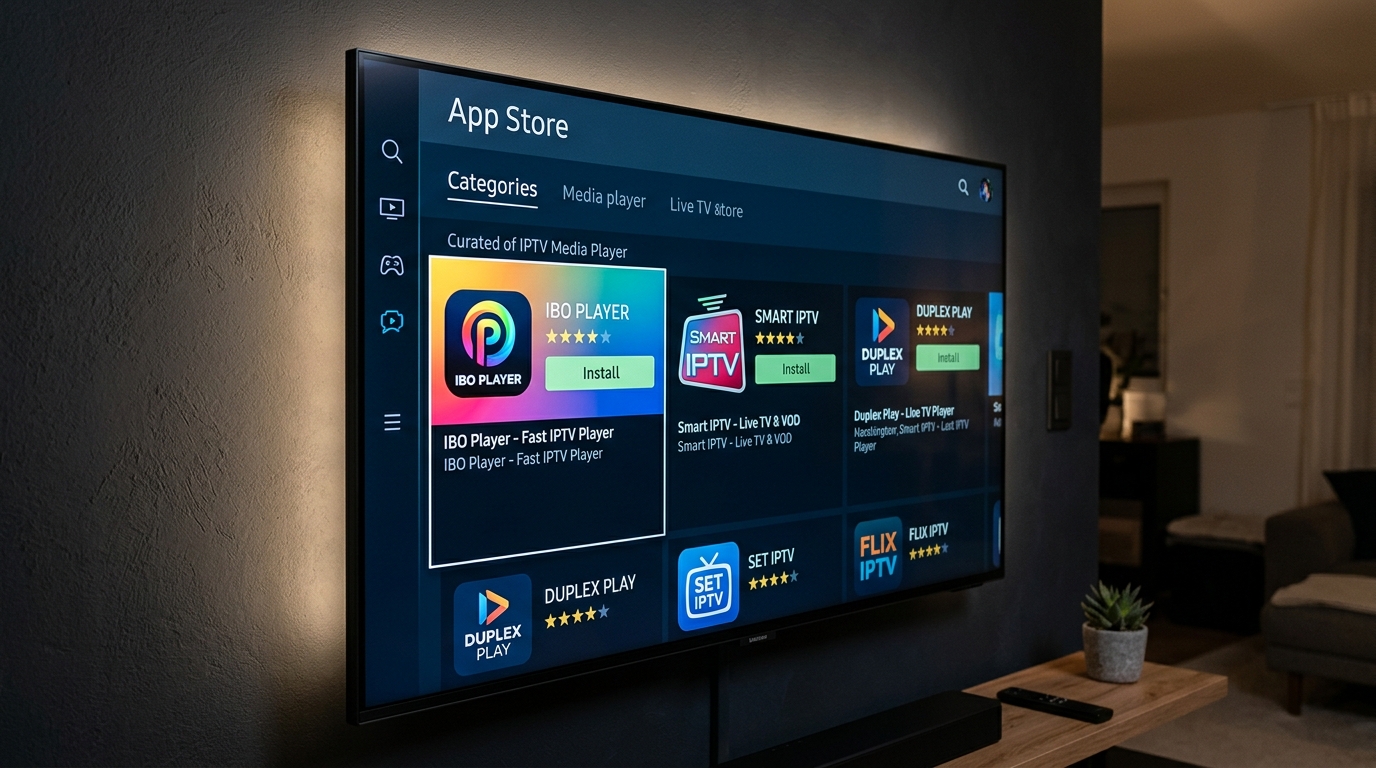
Step 1: Install a Compatible Player from the Samsung App Store
- Turn on your Samsung television and press the Home button on your remote.
- Navigate to Apps on the Smart Hub menu bar.
- Select the search icon and search for IBO Player or IPTV Smarters Pro.
- Select Install and launch the application once the download finishes.
Step 2: Note Your Device MAC Address and Device Key
When launching IBO Player or Smart IPTV for the first time, the screen displays two critical identifiers: a Device MAC Address (such as a1:b2:c3:d4:e5:f6) and a Device Key. Leave this screen open or photograph it with your phone.
Step 3: Connect Your EagleCast TV Credentials
- Open a browser on your smartphone, tablet, or PC and navigate to the player's web management portal (e.g.,
iboplayer.com/manage). - Log in using your TV's MAC Address and Device Key.
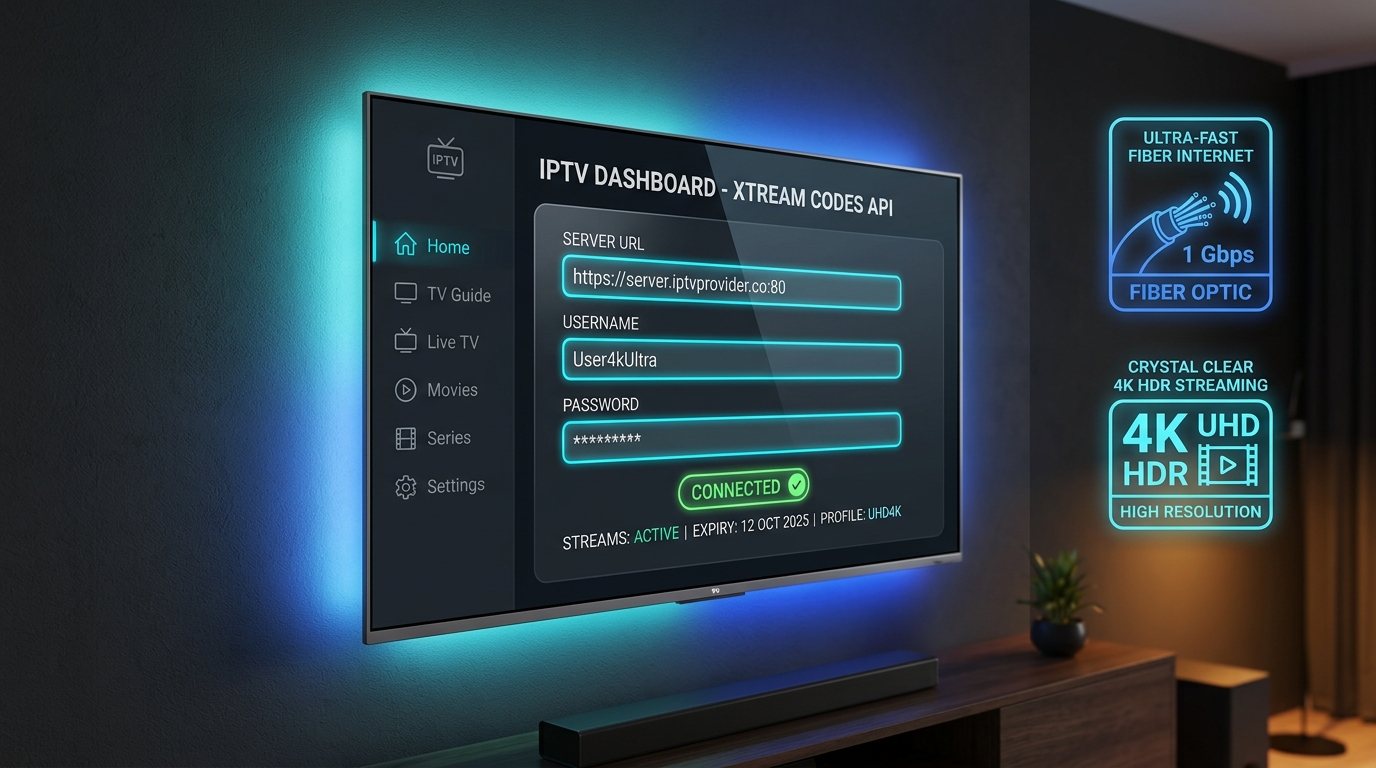
- Choose Add Playlist via Xtream Codes API. Entering your server URL, username, and password is substantially faster and more secure than pasting raw text; see our detailed Xtream Codes API vs M3U playlist guide to understand why this matters.
- Click Save and return to your Samsung TV.
- Restart the app or select Reload on your TV remote to populate your live channels, sports packages, and on-demand library.
Step-by-Step IPTV Setup for LG Smart TV (webOS)
LG televisions provide an equally straightforward setup process through the LG Content Store. Whether you own an OLED, QNED, or standard 4K LG display, the configuration workflow is identical.
Step 1: Download the Application from the LG Content Store
- Press the Home button on your LG Magic Remote to launch the webOS launcher.
- Open the LG Content Store (or Apps on newer webOS versions).
- Search for IBO Player, Nanomid Player, or IPTV Smarters Pro.
- Click Install to add the player to your home dashboard.
Step 2: Upload Your Playlist via Xtream Codes API
Launch the newly installed app on your LG TV. Similar to Tizen, your screen will display a unique Device ID or MAC Address. Open the player's configuration website on your computer or mobile device, enter your credentials from your EagleCast TV account confirmation email, and submit the playlist.
Step 3: Refresh EPG and Configure Hardware Acceleration
Once your channels load, enter the player's internal settings menu:
- Set the Stream Format to
HLSorMPEG-TSdepending on your connection stability. - Enable Hardware Decoder to offload video rendering to LG's onboard Alpha processor.
- Set the EPG Update Interval to every 24 hours to ensure your TV guide is always current.
Comparison: Top IPTV Apps for Samsung & LG Smart TVs
While standalone streaming boxes allow you to run specialized applications like TiviMate, Smart TV owners have several dedicated native players. Here is how the most popular options compare for Tizen and webOS.
| Player Name | Supported OS | Pricing Model | Xtream Codes API | EPG & Catch-Up |
|---|---|---|---|---|
| IBO Player | Samsung Tizen & LG webOS | 7-Day Free Trial (One-Time Activation) | Yes (Full Support) | Excellent |
| IPTV Smarters Pro | Samsung & LG (Select Regions) | Free with Optional Premium | Yes (Native) | Very Good |
| Smart IPTV (SIPTV) | Samsung Tizen & LG webOS | 7-Day Free Trial (One-Time Fee) | M3U Only | Moderate |
| Nanomid Player | Samsung Tizen & LG webOS | Free Trial (Paid License) | Yes (Encrypted) | Excellent |
If you prefer a broader selection of third-party players, explore our comprehensive breakdown of the best IPTV apps to see how native Smart TV apps compare against external devices.
Optimizing Your Smart TV for Buffer-Free Streaming
Smart TVs often have smaller onboard processors and less RAM than dedicated streaming devices. To guarantee silky-smooth live sports and 4K pay-per-view broadcasts without freezes, implement these critical optimization steps.
Wired Ethernet vs. 5GHz Wi-Fi
The single most effective optimization is connecting your TV to your home router with a Cat6 Ethernet cable. If your television is placed far from the router, ensure it connects to your router's 5GHz Wi-Fi band rather than the congested 2.4GHz network. For persistent connection drops, follow our verified troubleshooting guide on fixing IPTV buffering.
Managing TV Memory and Cache
Over time, Smart TV apps accumulate background data that can slow down channel switching. Once a month, perform a quick maintenance check:
- On Samsung TVs, navigate to Settings > Support > Device Care and run a diagnostic cleanup.
- On LG TVs, close background applications by double-clicking the Home button or clearing the app cache inside the application settings.
- Avoid storing multiple redundant playlist files inside your player, as parsing large datasets drains system memory.
Frequently Asked Questions
Can I install TiviMate directly on a Samsung or LG Smart TV?
No. TiviMate is an Android-only application and cannot be installed directly on Samsung (Tizen OS) or LG (webOS) televisions. To use TiviMate on these TVs, you must connect an external Android TV streaming device, such as an Amazon Firestick 4K Max or Google TV streamer.
What is the best native IPTV app for Samsung and LG TVs?
IBO Player and IPTV Smarters Pro are currently the top-rated native IPTV applications for both Samsung Tizen OS and LG webOS. Both offer straightforward Xtream Codes API integration, responsive channel switching, and reliable electronic program guide (EPG) loading.
Why do some Smart TV IPTV apps require a one-time activation fee?
Apps such as IBO Player, Smart IPTV, and Nanomid Player charge a small one-time developer licensing fee (usually after a 7-day free trial) to maintain server infrastructure that parses playlists and distributes regular updates across Samsung and LG app stores.
How do I fix buffering on my Smart TV when watching live sports?
Connect your Smart TV to your router using a physical Ethernet cable or connect to the 5GHz Wi-Fi band. Additionally, clear your TV cache from the system settings and ensure you connect through the high-efficiency Xtream Codes API rather than a heavy M3U text playlist.
Ready to unlock tens of thousands of global live channels, international sports networks, and 4K on-demand cinema directly on your Smart TV? Test the waters with an EagleCast TV free trial, or visit our EagleCast TV pricing page to choose the perfect plan for your household entertainment setup.